Twitch
 Followers
 YouTube
 Likes
 Subscribers
 Kick
 Followers
How to Stream on Twitch: A Step-by-Step Guide for Beginners
Everything you need to go live on Twitch for the first time: account setup, the gear and software you need, step-by-step instructions for PC, phone and consoles, and the mistakes most new streamers make.
 Drew Caldwell
On this page
• Create a free Twitch account, turn on two-factor authentication and verify your email.
• You can start with a phone or the computer you already have. A good microphone matters more than an expensive camera.
• On a PC or Mac, use free streaming software like OBS and connect it to your Twitch account.
• You can also go live straight from the Twitch app, an Xbox or a PlayStation.
• Keep talking, check your audio and stick to a schedule. Twitch Affiliate now needs just 25 followers and 4 hours of streaming on 4 days.
Every big Twitch streamer started with a first stream to a nearly empty chat. The difference between those who grew and those who quit is usually not talent or expensive gear. It is knowing what to set up, what to skip and how to keep going.
This guide shows you how to stream on Twitch from start to finish, even if you have never gone live before.
You will learn how to:
- Set up your Twitch account
- Choose the right streaming software
- Go live from a PC, Mac, phone, Xbox or PlayStation
- Get better audio and video quality
- Avoid the mistakes most new streamers make
Get Started: Setting Up a Twitch Account
You can stream on Twitch from a PC or Mac, a phone, an Xbox or a PlayStation. Whatever you use, you first need to create an account on Twitch.
Here’s how to do it:
Step 1: Go to Twitch.tv and click “Sign Up” in the top right corner. Sign up for a free account with your email address or phone number, pick a username and create a strong password. A short, easy-to-remember username helps people find you again. Then add a profile picture and a short channel bio.
Step 2: Turn on two-factor authentication (2FA) in Settings > Security and Privacy. It protects your account and stream key from hackers, and Twitch requires it before you can get paid as an Affiliate.
Step 3: Verify your email address, and you are ready to set up your stream.
Get Your Equipment Ready
You can go live with just a phone, but a basic setup makes your stream look and sound much better. Here is what you need.
Gaming PC
If you stream PC games, your computer has to run the game and encode the stream at the same time. Look for:
- At least 16 GB of RAM
- A recent CPU with 6 or more cores
- A graphics card with a built-in hardware encoder (NVIDIA NVENC, AMD or Intel), so streaming does not slow your game down
- An SSD and good cooling
You do not need the newest or most expensive PC. A mid-range gaming PC or laptop from the last few years is enough to stream at 720p or 1080p.
Streaming from a Mac works too. Any Mac with an Apple M1 chip or newer can run OBS and stream comfortably, although fewer games are available on Mac.
Optional: Some streamers use two computers, one for playing and one for streaming. You do not need that when you start. A single PC with a hardware encoder handles both.
Fast, Stable Internet
Your internet connection matters more than most beginners think. A slow or unstable connection causes freezes, dropped frames and blurry video, and viewers leave quickly when that happens.
What counts is your upload speed, not your download speed. Run a speed test before you go live. For 720p you want at least 7 Mbps upload, and for 1080p at 60fps around 10 Mbps or more. If fiber is available where you live, it is usually the most stable option.
Pro tip: Use a wired Ethernet connection instead of Wi-Fi whenever you can. It is more stable and cuts lag and buffering.
Streaming Software
To stream from a PC or Mac, you need streaming software. It captures your game, webcam and microphone and sends them to Twitch in real time.
When you compare options, look at:
- Price
- Ease of use
- Compatibility with OS
- Customization needs
- Features available
These are the most popular choices:
| Streaming software | Works on | Price |
| OBS Studio | Windows, Mac, Linux | Free |
| Streamlabs Desktop | Windows, Mac | Free, optional paid plan |
| XSplit Broadcaster | Windows | Free, optional paid plan |
OBS is a crowd favorite and a solid choice for beginners. Here’s why:
- It usually uses fewer system resources than Streamlabs, which helps on mid-range PCs.
- It has been around since 2012, is open source and runs on Windows, Mac and Linux.
- It is completely free. Streamlabs and XSplit have free versions too, but some features, like premium overlays and themes, need a paid plan.
- It stays simple. You can add plugins and advanced settings later, only when you need them.
- There are lots of free OBS tutorials online, so you can learn it quickly even with no experience.
Webcam or Camera
Viewers like to see the person behind the stream, so a webcam helps a lot. Your laptop’s built-in camera is fine to start with, but an affordable USB webcam looks much better and only takes a minute to plug in. Later, you can upgrade to a mirrorless or DSLR camera.
Popular webcams for new streamers include:
- Logitech C920S Pro HD
- Razer Kiyo
- Logitech C922 Pro Stream
- Elgato Facecam
Microphone and Headphones
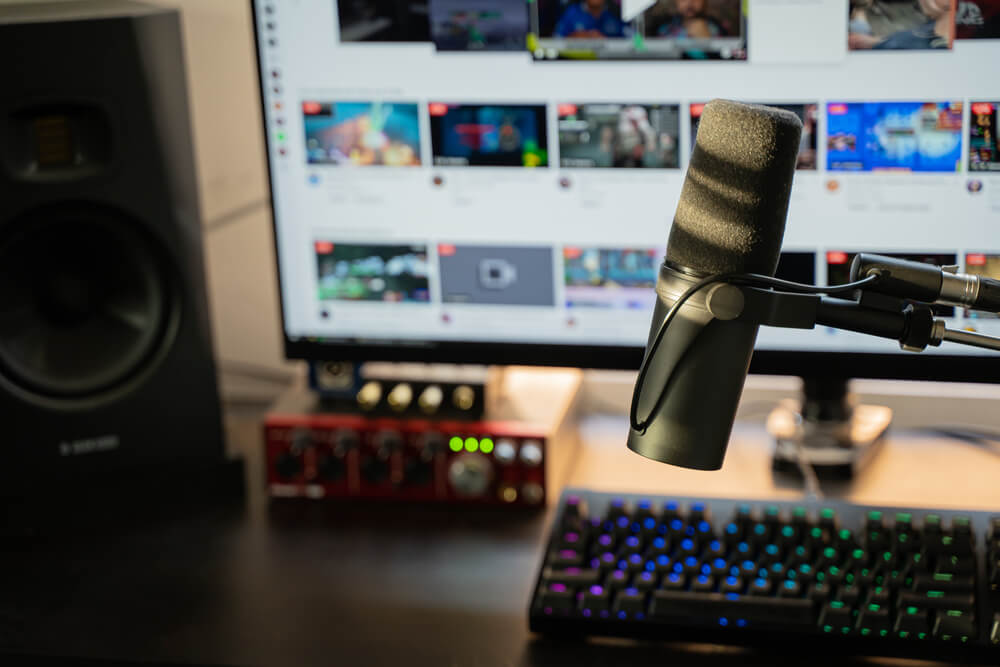
Viewers forgive average video, but not bad audio. A good microphone makes you easier to listen to for hours. Popular picks among streamers:
- Elgato Wave:3
- Logitech G Yeti X
- Shure SM7B (needs an audio interface)
- HyperX QuadCast S
Cheaper options that still sound good:
- Logitech G Yeti Orb
- Fifine K669B
- Blue Snowball
Headphones matter too. They let you hear your own audio, game sound and alerts without your mic picking them up as echo. Wired headphones work best, because wireless ones can add a small delay. Good budget options:
- Sony MDR-7506
- Audio-Technica ATH-M20x
- HyperX Cloud II
Optional Gear
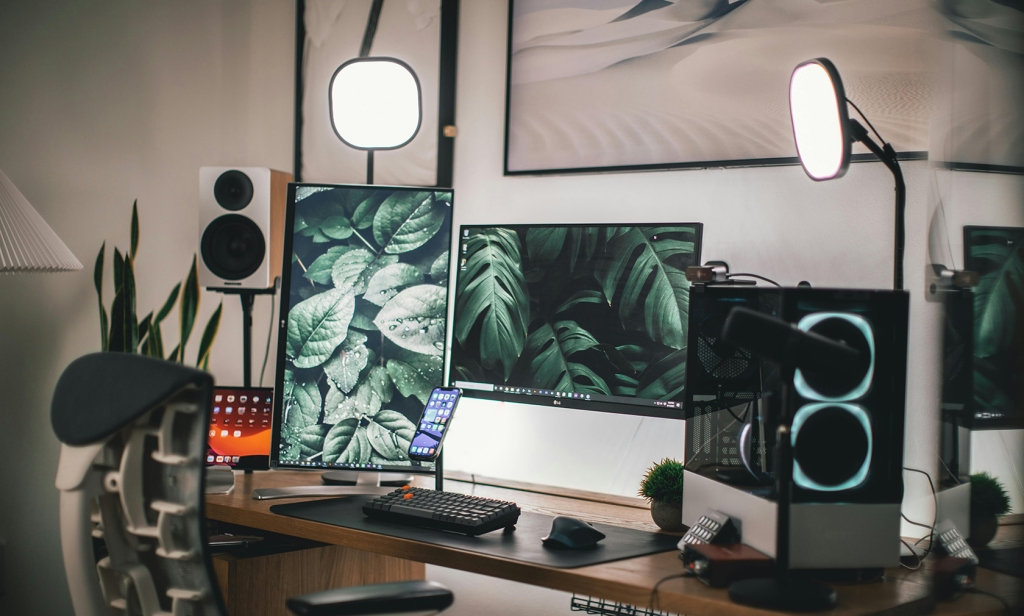
- A key light or ring light if your room is dark
- An audio interface if you use an XLR microphone
How to Stream on Twitch From Any Device
With your setup ready, here is how to go live on each device.
How to Start a Twitch Stream From Your Mobile
Streaming from your phone is the easiest way to start, because you do not need any extra software. Download the Twitch app from Google Play or the App Store and go live from there:
- Log in to your Twitch account.
- Tap your profile picture and choose “Go Live”.
- Choose “Stream IRL” to stream with your camera, or “Stream Games” to share your phone screen while you play.
- Add a stream title, pick a category and check your mic and game volume.
- Turn on Do Not Disturb first. When you share your screen, viewers can also see your notifications.
- Tap “Start Broadcast” to go live.
More Mobile Twitch Streaming Tips for Beginners
Use strong Wi-Fi or a stable 5G connection to avoid lag, and keep your phone plugged in, because streaming drains the battery fast.
For overlays, alerts and better chat tools on mobile, try apps like Streamlabs Mobile or Prism Live Studio.
How to Start a Twitch Stream on Your PC or Mac
Install a free streaming program like OBS, then follow these steps:
- In OBS, go to Settings > Stream and choose Twitch as the service.
- Click “Connect Account” and log in to Twitch. You can also paste your stream key from the Twitch Creator Dashboard (Settings > Stream), but never share that key with anyone.
- Add your game, webcam and microphone as sources in OBS.
- Click “Start Streaming” to go live. Do a short test stream first to check that your audio and video work.
How to Start a Twitch Stream From Xbox and PlayStation
You can also stream straight from an Xbox or PlayStation, without a PC:
For Xbox
- Press the Xbox button to open the guide and go to Capture & share > Live streaming.
- The first time, link your Twitch account by scanning the QR code with your phone or entering the code shown on screen at twitch.tv/activate.
- Add a stream title and check your mic and game audio levels.
- Select “Go live now” and start your game.
For PlayStation
- Link your Twitch account in Settings > Users and Accounts > Linked Services (PS5).
- Start the game you want to play and stream.
- Press the Create button (PS5) or the Share button (PS4).
- Choose “Broadcast” and select Twitch.
- Add a title and select “Go Live”.
How to Make the Most of Your Twitch Stream
A few settings make a big difference to how your stream looks and runs:
- Use your graphics card’s hardware encoder. In OBS, choose NVENC on an NVIDIA card (or the AMD or Intel option) under Settings > Output. It handles the encoding, so your game keeps running smoothly. NVIDIA’s broadcasting guide explains the settings.
- Set your bitrate to match your upload speed. Around 3,500 to 5,000 kbps works for 720p, and around 6,000 kbps for 1080p at 60fps.
- Start at 720p and 30 or 60fps. Move up to 1080p at 60fps once your PC and connection handle it without dropped frames, especially for fast-paced games.
Want your channel to look more established when new viewers find it? Some streamers boost their Twitch followers to get past the empty-channel stage faster.
Common Beginner Mistakes and How to Avoid Them
Keep Talking
Your chat will probably be quiet during your first streams. Many beginners take that as rejection and go silent, which is the biggest mistake. Talk to the few viewers you have, ask questions and narrate your gameplay. A streamer who keeps talking gives new viewers a reason to stay.
Check Your Audio
Many beginners focus on video and forget audio. Do a mic check and watch your audio levels before you go live. If your room is noisy or echoey, add the noise suppression filter in OBS.
Stick to a Schedule
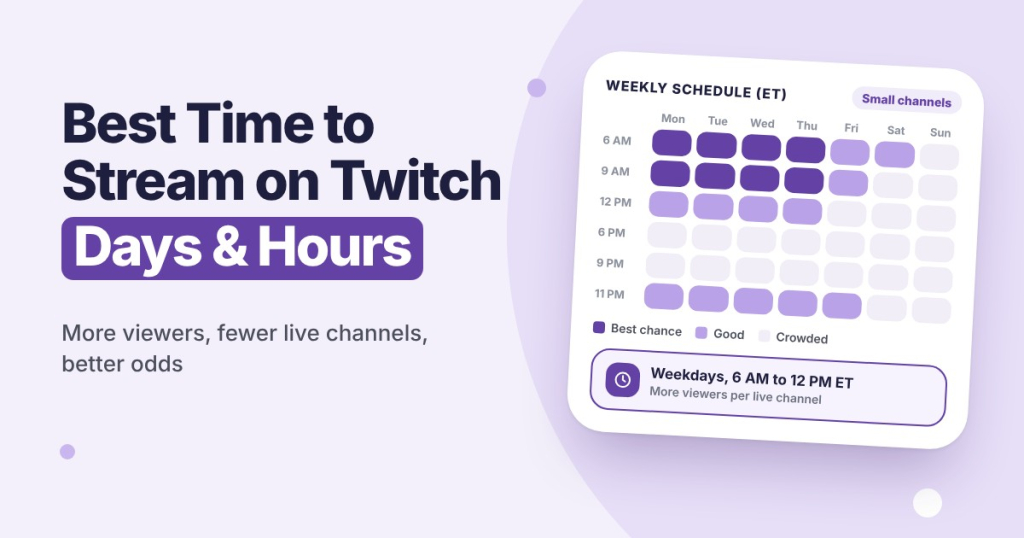
Consistency matters more than anything else when you start. Streaming five times one week and not at all the next confuses viewers. Pick a realistic schedule, post it on your channel and stick to it. Our guide to the best time to stream on Twitch can help you choose your hours.
Be Yourself
Your first streams can feel like a shot in the dark, and you may not have found your style yet. That is fine. Do not try to copy your favorite streamer. Being yourself is what makes people come back.
Write a Good Stream Title
Many beginners go live with no title or the default one. Your title and category are what people see when they browse, so they affect who clicks on your stream. Always add a clear, interesting title and choose the right category or game before you go live.
If your streams still struggle to get noticed, some streamers increase their Twitch viewers so new streams do not start at zero.
Ready for Your First Stream?
Many new streamers spend weeks overthinking their first stream. Once your basic setup is ready, going live on Twitch is easy.
Your first streams will not be perfect, and that is normal. Go live, keep a steady schedule and improve a little every time.
Twitch Streaming FAQs for Beginners
Quick answers for streamers going live for the first time.
01How do you stream on Twitch as a beginner?
Create a free Twitch account, turn on two-factor authentication and decide whether you will stream from a phone, PC or console. On a phone you can go live straight from the Twitch app. On a PC, install free software like OBS, connect it to Twitch and click Start Streaming.
02How much can a beginner Twitch streamer earn?
Most beginners earn little at first. Since May 2026, Twitch lets eligible streamers earn Bits and subscriptions before they reach Affiliate, but you need Affiliate status to withdraw the money. Affiliate requires 25 followers, 4 hours of streaming on 4 different days and an average of 3 viewers within 30 days.
03How much does it cost to begin streaming on Twitch?
Streaming on Twitch is free. You can start with just a phone or the computer you already have. Most streamers spend money later on a microphone, a webcam and lighting.
04How long should a beginner Twitch streamer stream for?
There is no perfect length, and consistency matters more than hours. Many beginners stream 2 to 4 hours at a time, a few days per week, on a fixed schedule.
05Is it legal to play copyrighted music on Twitch?
Generally no. Playing music you do not own or have a license for can lead to DMCA takedowns and strikes on your channel. Use royalty-free or licensed music made for streaming instead.
Drew Caldwell is a consultant, researcher and editor-in-chief of the StreamerPlus blog. His work focuses on social media, marketing and digital strategy, using data analytics to help creators understand platform algorithms and grow their audience.